

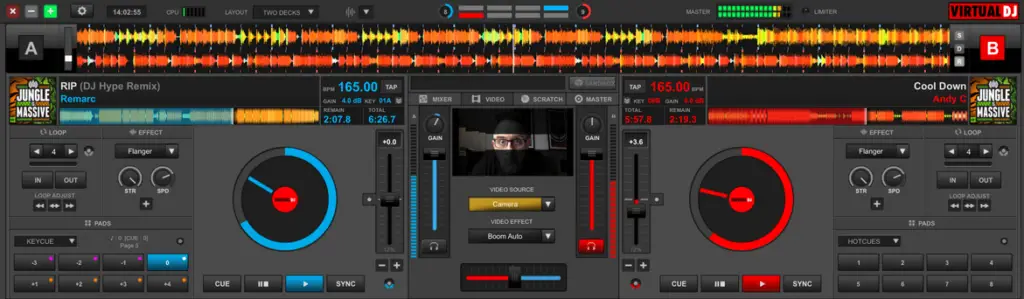
Virtual DJ has gone a long way since its early days in the beginning of the XXI century. The software has made tons of tremendous improvements, a few of those being new modern user interface design, introducing real time stem separation features, integrating streaming services into the software library, presenting new features such as the sandbox mode.
Virtual DJ did some immense upgrades both in terms of user interface redesign, native controller support and new useful features. In this article I’m going to run through the features I find the most important of the bunch.
This article is based on my own experience with Virtual DJ over the years, using it both with dedicated DJ controllers, old controllers like the Numark Total Control and even the Novation Launchpad S. Feel free to use this review to decide whether Virtual DJ software is a thing for you or not. The features listed here are those that in my opinion make Virtual DJ stand out in some way from other major mixing software such as Serato, Rekordbox or NI Traktor. Let’s begin!
1. Real time stem isolation
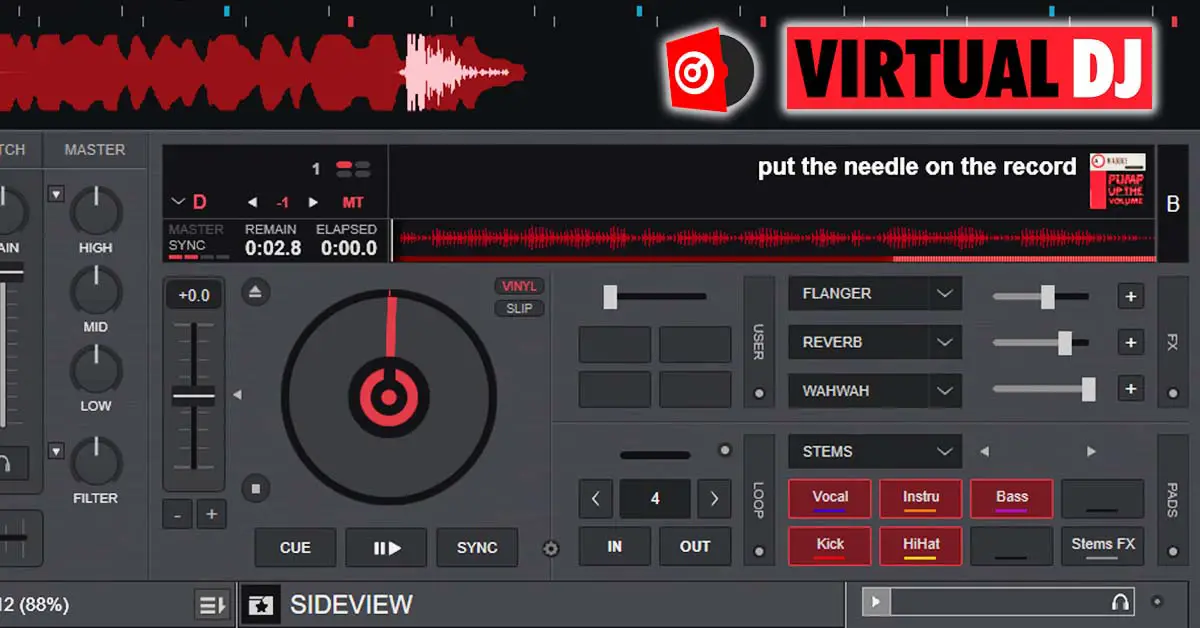
Virtual DJ features its Stems 2.0 real time stem separation system that allows the DJ to split a song into stems and use them for live mixes.The stem levels and individual stem triggering can be controlled from the equalizer knobs and performance pads.
The Virtual DJ stem separation algorithm is not based on the widely used and popular open source Spleeter library by Deezer. Virtual DJ uses its own stem separation solution, which has continued to receive updates with newer versions of the software.
On newer laptops and PCs VDJ can use hardware (GPU) acceleration for faster stem analysis. On a sufficiently powerful modern computer the separation can work in real time, while on much weaker hardware it’s better to prepare high-quality stems in advance.
2. Streaming services integration
Virtual DJ allows the user to integrate various streaming services into the software library and use the streamed songs during live mixes. This feature seems to be one of the most popular ones in today’s DJ software and many would find it hard to go without it.
The Virtual DJ software works with all following music streaming services:
- TIDAL
- Deezer
- Beatport
- SoundCloud
And the following music content catalogs:
- iDJPool
- Digitrax
- VJ-Pro (library for video mixing)
- Sunfly (karaoke catalog)
The music content catalogs present in the list require a paid subscription to be used with VDJ software.
You can learn more about these integrations here: Streaming Services Integration With Virtual DJ? (Quick and simple)
3. Simple MIDI mapping features
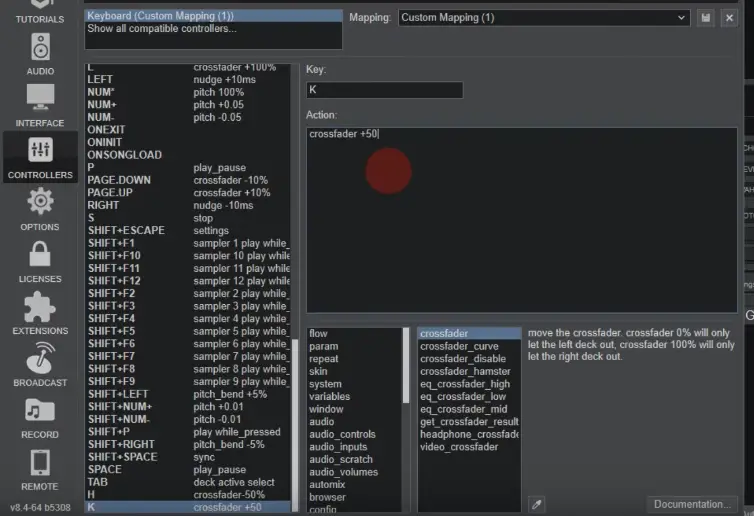
The Virtual DJ software allows you to quickly map the appropriate MIDI controls from your controller to almost every part of the software, including multi-function mappings.
This means that just like in the Native Instruments Traktor software you are able to go wild with the controller button mapping and you gain access to many self-made combinations for controlling effects or playback. All this is done by a simple visual menu interface that’s in my opinion a bit easier to use than the Traktor one. The VDJ software offers great flexibility in the terms of making your own custom MIDI mappings.
4. Can you use Virtual DJ without a DJ controller?
Of course it is still possible to use the VDJ software without any DJ controller using only the keyboard inputs. You can do this by mapping key outputs to certain software controls using the same menu used in midi controller mapping.
5. The Virtual DJ sandbox mode
The sandbox mode in the VDJ software makes the current master output play independently of the things you decide to do in the main mixer and decks area. This means you are free to manipulate tracks on your decks and while the sandbox mode is on the audience won’t hear it!
When the sandbox mode is activated the song that is currently playing is pushed into a little box in the top part of the screen and now it’s playing through your speakers or PA while all the things you do on the decks are now audible through your headphone/PFL output.
This feature allows you to experiment and do all sorts of transition and fx tests on the track that is playing for the audience without them noticing. This way you are able for instance to prepare and go through a transition in your headphones while the actual track playback is still uninterrupted.
After finishing your quick sandbox session you can go back to the regular mixing by turning off the sandbox mode by pressing the sandbox icon on the top bar.
When leaving the sandbox mode the crossfader setting along with some other changed settings will reset in software however be wary that the software control reset naturally doesn’t affect the physical positions of the controls.
The sandbox mode is also great for exploring an unknown track during a live gig. It’s a great alternative to regular headphone track playback as the sandbox session is fully interactive and you can use all the available software features while using it.

Check out the official VDJ guide to the sandbox function here.
One of the cool Virtual DJ features is the ability to sort and search through your track library using a set of quick filters.
You are able to filter tracks in the folders and in the search box using self-made custom conditional filters. All the quick filters that you make will appear beside you search bar.
One of great uses of this features is creating a filter that has a similar BPM to the track that you’re currently playing. You can set the BPM difference alongside with other conditions while creating the filter.
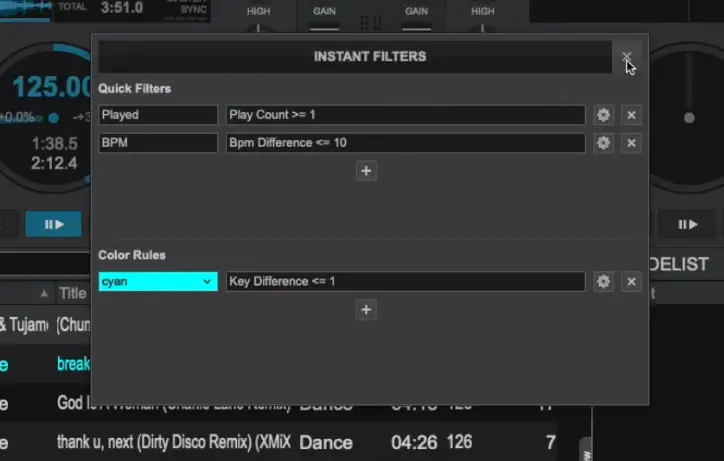
The color filtering allows you to set the exact same filters but this time all the filtered tracks in the library will be highlighted with your color of choice.
Now you are also able to use multi user hashtags to sort your music collection.
Hashtags in Virtual DJ can make the database navigation even easier. You can set the custom made hashtags that function as regular tags to the tracks of your choice and then use those tags to search through your music library.
7. CDJ track export Feature
Virtual DJ has got a great feature that allows you to export folders and playlists to your USB drive ready to use with Pioneer CDJ Players.
Using this feature you are able to export analyzed tracks, hot cue points and even pre-generated song stems (Acapella, Instrumental, Melody and Beat from the real time stem separation algorithm) if you would like to use those for your CDJ mixes.

Check out the official VDJ site about the CDJ export feature here.
8. Virtual DJ scratch banks
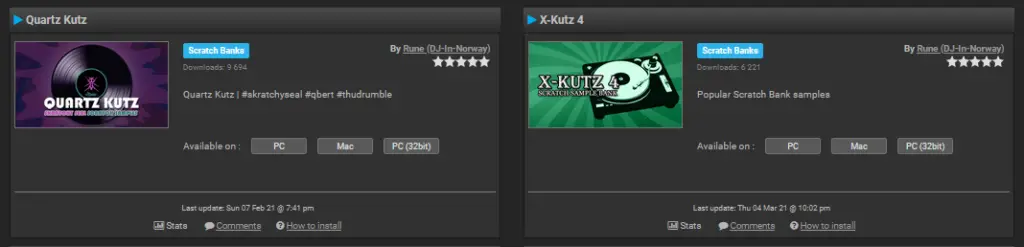
Virtual DJ grants you access to scratch banks. Those are banks of high quality scratch samples built in for quick access inside of the software. You can select a scratch sample from the scratch bank and easily load it inside one of your decks.
You can also compose your custom scratch bank presets using your samples of choice from your drive.
Scratch bank also allows you to quickly move between your scratch samples and the track that was previously loaded on the deck you’re scratching on via controller pad shortcuts.
Many custom scratch banks with pre-selected samples are available for free as an add-on downloads inside of the Virtual DJ Software.
9. What’s new in Virtual DJ 2026?
Virtual DJ 2026 brought a few interesting additions that are worth mentioning here. The new AI Prompt feature lets you type natural-language requests for track suggestions directly inside the browser and then load the results onto your decks. The feature requires a Pro license.
Another useful addition is Fluid Beatgrids, designed for tracks with drifting or variable tempos such as older disco, rock, live recordings and warped vinyl rips. The accompanying BPM Stabilizer can temporarily steady these tracks so you can beatmatch them manually.
The new versions of the software also introduced lyrics-assisted waveforms, with automatically detected lyrics integrated into the waveform display.
10. Should you bother using Virtual DJ these days?
The Virtual DJ software has made immense progress throughout the last years of its development. Over those years it has become stable enough for live use and gained many features, some of which may make the competition jealous.
Here are in my opinion the main advantages of the Virtual DJ software in 2026:
- The software can still be used for free for non-commercial use without ongoing DJ controller support.
- An exclusive AI based stem separation algorithm.
- Extensive MIDI mapping features and broad controller support. (including simple mapping of unsupported devices)
- The sandbox mode
- Great large track library management with highly customizable smart filters.
- Ability to quickly export not only analyzed tracks but also separated song stems to your CDJ Players.
- Fluid Beatgrids, AI-assisted track suggestions and lyrics-assisted waveforms.
It’s up to you whether the available features are enough to make you switch to Virtual DJ or consider using it as your main DJ software. One of the main advantages of Virtual DJ is its simple MIDI mapping system for every controller available out there, huge flexibility and many customization options both for user interface, library and database filters and user interaction. And that’s pretty much it!
If you want to start saving your sets, here’s my guide to recording a mix in the software: How To Record Your Mix in Virtual DJ? (Quick & Easy)