

How do you record a DJ set in Rekordbox? Recording your mixes is a great way to evaluate your skills, and it’s essential if you want to save or share your sets online. Rekordbox has its own built-in recording utility, so I’ll go over how to use it, where the recordings are saved, and what to check if the REC controls aren’t available.
How to record your DJ set in Rekordbox?
To record your DJ mix in Rekordbox:
- Click the REC icon in the global section to open the recording panel.
- Select the recording source. If you’re mixing internally in Rekordbox, this will normally be Master Out.
- Play the loudest part of a track and adjust the recording level so you have a healthy signal without constantly hitting the red.
- Press the record button. Depending on your recording preferences, Rekordbox will either start immediately or wait until it detects an audio signal.
- When you’re finished, press the stop button and enter the track information if you want to add it to the recording.
When you’ll decide to end your recording, it will be saved to the default Rekordbox recording file location.
You can also change Rekordbox between automatic audio-detection and manual REC-button start/stop behavior in the recording preferences.
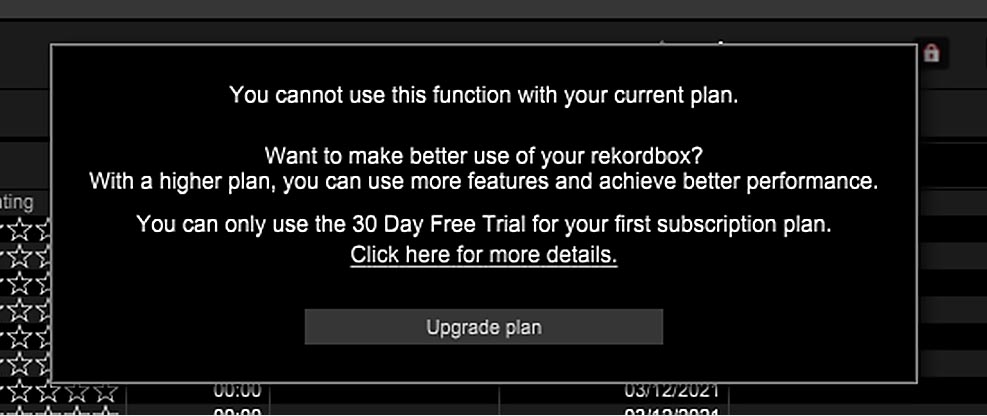
If the recording controls are locked while you’re using DJ hardware, check your Rekordbox plan and the controller or mixer you’ve connected. Recording in Performance mode with DJ equipment requires either a paid plan or a compatible Hardware Unlock device.
If you’re not sure what that means, I’ve explained Rekordbox and Serato Hardware Unlock devices here.
The maximum recording time per file is 3 hours. If your set runs longer, Rekordbox automatically saves the first 3-hour file and continues recording into a new one.
Rekordbox saves recorded mixes as WAV files at 44.1 kHz / 16-bit.
Where does Rekordbox save recorded mixes?
The default Rekordbox set recording location should be identical for Windows and macOS operating systems. Here is the default recording file path:
On a standard installation, Rekordbox recordings are normally stored inside the PioneerDJ/Recording folder in your user Music directory.
- Windows: C:\Users\YourUserName\Music\PioneerDJ\Recording
- macOS: /Users/YourUserName/Music/PioneerDJ/Recording
Your actual recording folder can be changed in Rekordbox, so if those paths don’t match your computer, check the Location of Files setting described below.
Note: “YourUserName” in this file path will be your actual username on the device you’re using.
How to change the default mix recording location in Rekordbox DJ software?
To change where Rekordbox saves your recordings:
- Open Preferences.
- In Performance mode, go to Controller -> Recordings. In Export mode, go to Advanced -> Recordings.
- Find Location of Files, click Browse and select the folder where you want future recordings to be saved.
Note: If you can’t find the Location of Files option, remember that in EXPORT mode it will be located under File -> Preferences -> Advanced – Recordings.
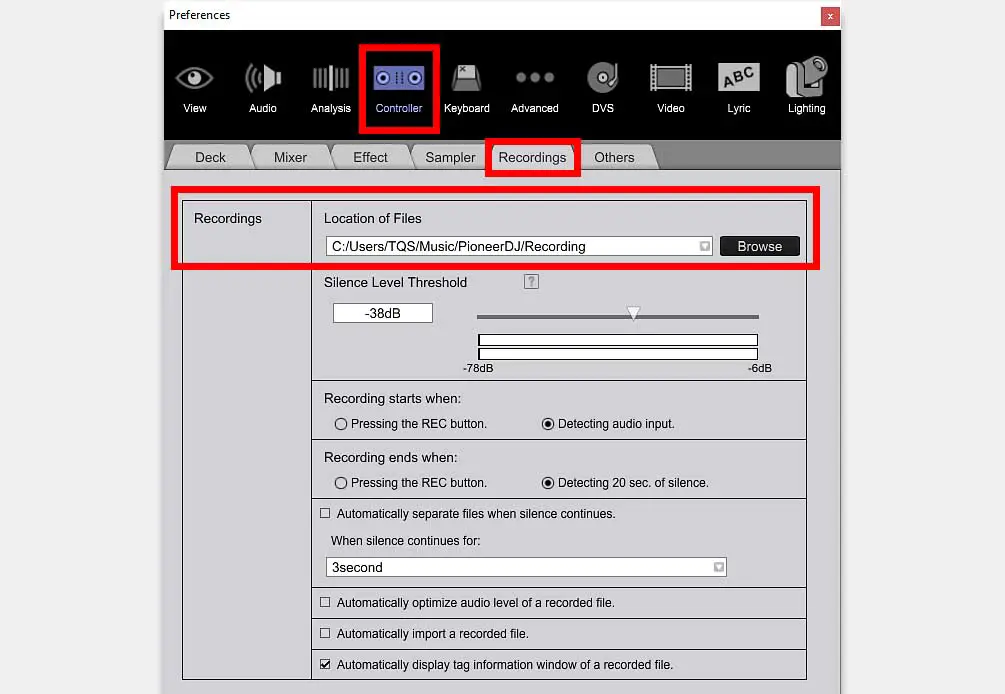
Changing the recording location doesn’t move your existing files. If you want everything in one folder, you’ll need to move the older recordings manually in Explorer or Finder.
Can you record a Rekordbox mix with streaming tracks?
Are you using streaming services as your music source in Rekordbox? If you’re unable to record your mix and you’re seeing an error akin to the “Invalid action. REC is disabled…” error, it might be because of the way Rekordbox treats mixes with streamed music in them.
Rekordbox doesn’t allow you to use its built-in recording function when your mix contains tracks loaded from an integrated streaming service. This restriction currently applies to services such as Apple Music, Spotify, Beatport Streaming, Beatsource Streaming, SoundCloud and TIDAL.
This is a restriction placed on streaming-service content, so even having offline access to a streamed track doesn’t turn it into a normal local music file for recording purposes.
You might also like: Can You Record Your Mixes With Serato DJ Lite? – How To
How to record Rekordbox mixes with Audacity
If you don’t want to use Rekordbox’s built-in recorder, you can also capture the mix with third-party software such as Audacity or OBS. The exact setup depends on your operating system and where Rekordbox is sending its audio.
One of the best and easiest methods here is to use the free and open-source Audacity audio recording software, available for both Windows and macOS.
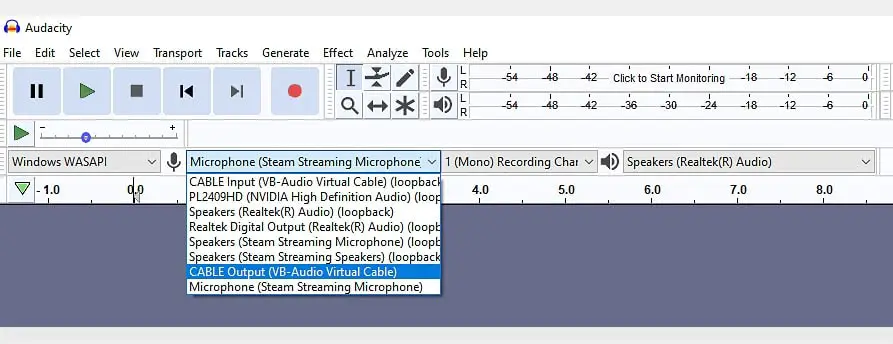
On Windows, Audacity can often record computer audio directly using a Windows WASAPI loopback input. Select Windows WASAPI as the audio host, then choose the output you’re using as the recording device – it should have “(loopback)” in its name.
If Rekordbox is sending audio through a DJ controller or another audio driver that Audacity can’t capture directly, you may need a virtual audio-routing device such as VB-CABLE instead.
On macOS, Audacity doesn’t have native desktop-audio capture, so a virtual audio device such as BlackHole or VB-CABLE is generally needed. You’ll usually create a Multi-Output Device so you can send audio to both your speakers/headphones and the virtual recording input.
Once Audacity is receiving a signal, check the recording meter before starting your set and make sure the level isn’t clipping.
OBS is another free option, and on newer systems it can sometimes be easier than Audacity. Current OBS versions can capture individual application audio on Windows, while OBS 30 and newer can capture desktop or application audio directly on macOS 13 and later.
If your particular Rekordbox audio setup isn’t available to OBS directly, you can still fall back to a virtual audio cable.
Here are the links to all the free software you need:
- Audio recording software: Audacity / OBS (both work for macOS and Windows).
- Virtual audio cable software: VB-Cable (for macOS & Windows), BlackHole (for MAC).
You might also like: How To Record Your Mix in VirtualDJ? (Quick & Easy)
